If you need to check gift card balance details for a Square gift card, start with the situation: use the POS app when the customer is at the register, use Dashboard when you need transaction history, and use the customer balance link or QR code when the customer can check it themselves. The main thing is to identify the right card first, usually by card number, scan, QR code, or the original sale record.
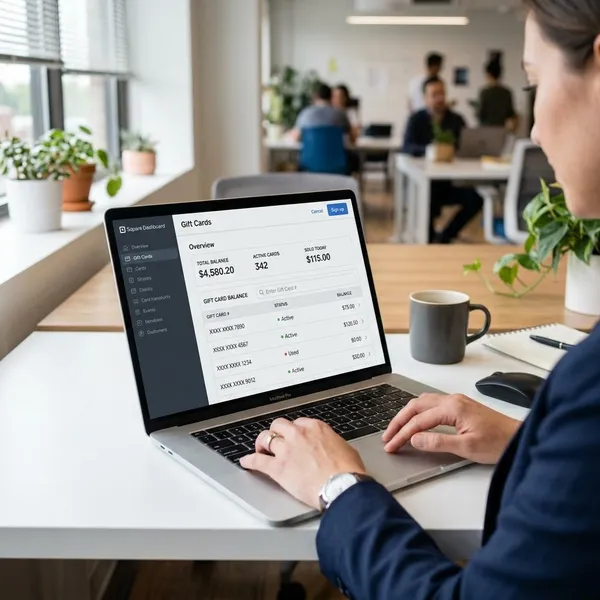
How to check a balance in Square Dashboard
Square Dashboard is the better route when you are not just giving a quick answer, but also want to confirm the sale, check the card history, or investigate why a balance looks wrong. It is slower than the POS app, but it gives more context.
Open Transactions
Sign in to Square Dashboard and open the payments area, then go to Transactions. Depending on your Dashboard layout, the payments area may be shown under wording such as Orders & payments, Invoices & payments, or simply Payments.
This is the right place to start if the balance question is tied to a past sale. For example, if a customer emails after leaving the store and says their card should have more value, Transactions gives you a cleaner trail than asking a cashier to remember what happened.
Search the gift card sale
Search for the original gift card sale using the details you have. The receipt number, purchase date, customer information, or the last four digits of the gift card number can help narrow it down.
- Best match: receipt number from the original purchase.
- Useful backup: last four digits of the gift card number.
- When records look similar: compare date, amount, and customer details before opening the card.
Select the transaction
Open the transaction that appears to match the gift card sale. Before moving on, check that the purchase amount, date, and card details make sense.
This small pause prevents a common mistake: giving a customer the balance from a different card sold on the same day. That risk is higher during busy periods, holiday sales, or when one customer bought several gift cards at once.
Open the gift card details
Inside the transaction, select the gift card number or linked card detail. That takes you from the general payment record to the stored-value record for that specific card.
View the remaining balance
The gift card details should show the remaining balance. If the balance is being questioned, also look for signs of redemption, reloads, or clearing activity before replying to the customer.
If your Square setup allows balance clearing, treat it as a sensitive action. Clearing removes stored value, so it should only be done when the card is correct, the amount is confirmed, and your business has a clear reason to do it.
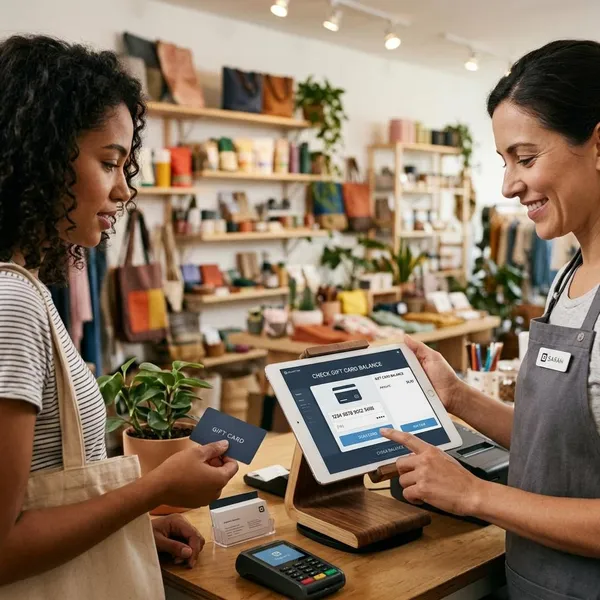
How to check a balance in the Square POS app
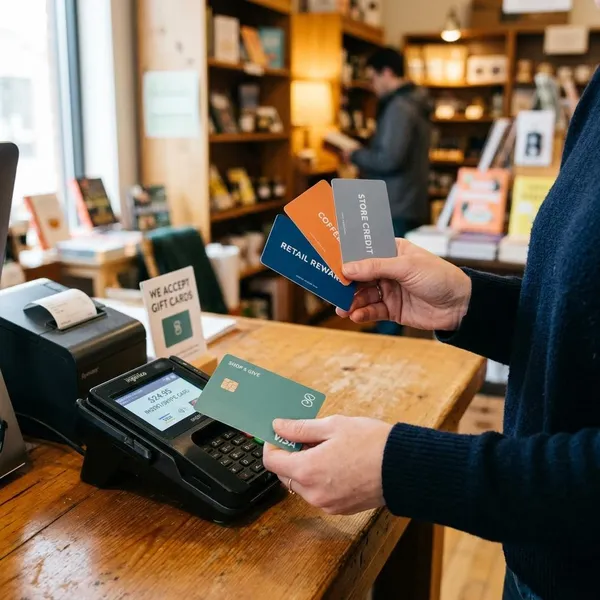
The Square POS app is the best choice when a customer is in front of you and needs a quick answer. It keeps the lookup close to checkout, so staff do not have to leave the register flow or open a back-office screen.
Open Gift Cards from checkout
From the checkout screen, tap Library, then choose Gift Cards. This opens the gift card tools instead of the regular item-entry or payment screens.
Choose Check balance or reload card
Tap Check balance or reload card. Square groups those actions together because the next question is often practical: if the card has only a small amount left, the customer may want to add more value before paying.
Swipe, scan, or enter the card
Use the method that fits the card in front of you: swipe the physical card, scan a barcode, scan a QR code if supported, or manually enter the 16-digit card number.
Manual entry is the fallback worth remembering. A damaged barcode, dim phone screen, or camera issue does not automatically mean the card is invalid.
View the balance
Once Square recognizes the card, the app shows the remaining balance. Check the last four digits if they are displayed, then tell the customer the amount before applying it to a sale.
For a cafe, salon, or retail counter with a line forming, this is the lowest-friction method. The customer gets an answer, and the employee can continue checkout without turning a simple balance question into a support case.
Reload or clear the card if needed
If the customer wants to keep using the same card, reload it from the same flow. If a clear-balance option appears, only use it under your business policy and with the right permissions.
- Reload: useful when the customer wants to add value and reuse the card.
- Clear balance: only for approved situations, because it removes remaining stored value.
- Do nothing: often the right choice when the customer only wanted to know the amount.
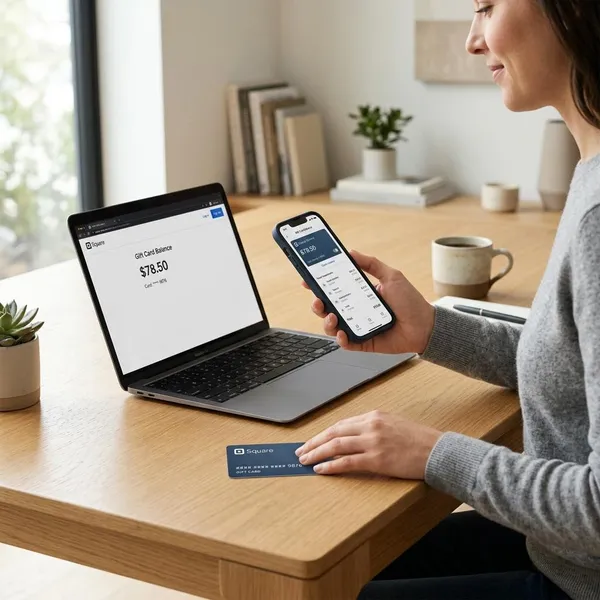
How customers can check their own balance
Customers can often check a Square gift card balance without contacting the business. This is useful for routine questions, especially outside business hours or before someone visits a store.
Use the balance check link
Square businesses can usually find a customer-facing balance check link in Dashboard and share it on a website, receipt, email, or support page. This is the simplest self-service option when customers ask the same balance question repeatedly.
If your staff gets frequent calls about gift cards, make this link easy to find. A customer who only wants to know whether they have enough value for lunch or a small purchase should not need to wait for a reply.
Scan the QR code
If the card has a QR code, the customer can scan it with a phone camera and follow the balance-check flow. This works best when the code is clean, well printed, and not covered by scratches or folds.
Enter the card number
When scanning is not available, the customer can enter the gift card number manually. The number usually needs to be typed exactly, so one wrong digit can make it look as if the card cannot be found.
A simple troubleshooting step is to re-enter the number slowly before contacting the business. This saves time when the issue is just a typing error.
Enter the PIN
Some Square gift cards ask for a PIN before showing the balance. If the page requests one, the customer should enter the PIN connected to the physical or digital card.
If the card does not have a PIN or the PIN is not working, the seller may need to check the card through Dashboard or the POS app. That is a better next step than guessing or repeatedly trying different numbers.
Check from a Square profile
A customer with a saved Square profile may be able to view saved gift cards there. This is most useful for repeat customers who use the same card over time or manage more than one digital card.
For a one-time gift card recipient, the balance link or QR code is usually easier. For someone who buys from Square sellers often, a profile can reduce repeated manual entry.
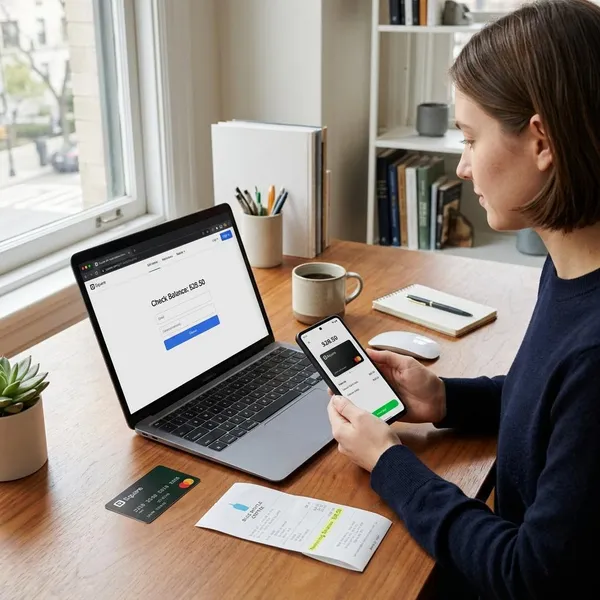
Which balance check method should you use
Choose the method based on what problem you are solving. Speed, proof, and self-service are different needs, and one method does not handle all three equally well.
POS app for fast checkout help
Use the POS app when the customer is physically present and the goal is to keep checkout moving. It is the most practical choice for quick balance checks, same-visit reloads, and staff working from a register or mobile device.
Dashboard for transaction review
Dashboard is the safer choice when the amount needs explaining. Use it for balance disputes, refund-related questions, old gift card sales, or situations where several similar cards could be mixed up.
The priority here is accuracy, not speed. A few extra clicks are worth it if the customer is asking why the balance changed.
Customer link for self-service
Use the customer link when the question does not need staff judgment. It is ideal for routine lookups before a visit, after hours, or when customers simply want to confirm the remaining value on their own.
QR code for quick mobile checks
A QR code is best for quick mobile access when the customer has the card in hand. It avoids typing a long number, which lowers the chance of simple entry mistakes.
Do not rely on QR alone, though. If the printed code is damaged or the camera cannot read it, manual card-number entry should still be available.
Square profile for saved cards
A Square profile makes the most sense for customers who expect to reuse or track cards over time. It is less important for a one-off gift card, but convenient for regular buyers who prefer account-based access.
| Situation | Use this method | Why it fits |
|---|---|---|
| Customer is waiting at checkout | POS app | Fastest live lookup |
| Balance looks wrong | Dashboard | Shows more transaction context |
| Customer wants to check before visiting | Balance link or QR code | Self-service with less staff time |
| Customer uses saved digital cards | Square profile | Easier repeated access |
Conclusion
The best Square balance lookup method depends on the moment: POS for a quick counter answer, Dashboard when you need proof or history, and self-service tools when the customer can handle it alone. If your business sells gift cards regularly, the most useful setup is simple: train staff on the POS flow, keep Dashboard access limited to the right people, and make the customer balance link easy to find.