If you are trying to use an apple gift card code, the first thing to check is whether you are entering the redemption code, not the serial number or barcode. The right code is usually found near the redemption instructions, often starts with "X", and must be redeemed with the Apple Account where you want the balance to appear.
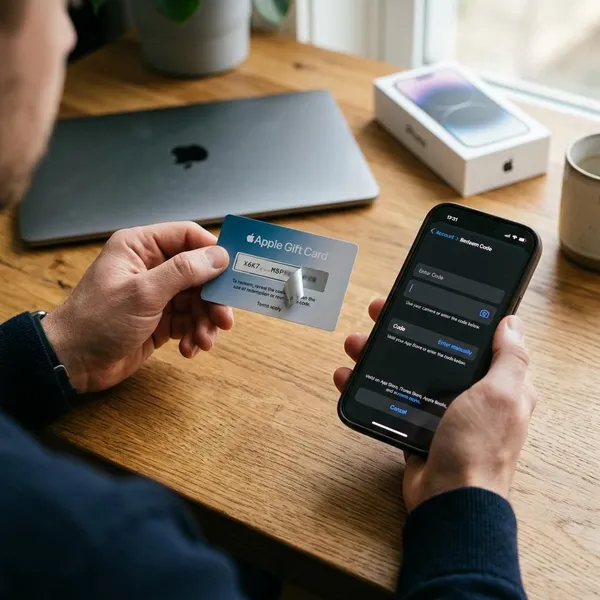
Where to find your Apple Gift Card code
Apple cards can show several numbers, so it is worth slowing down before you type anything. The redemption code is the one that adds value to your Apple Account balance; the serial number, barcode, and store reference numbers are usually for checkout, tracking, or support.
Back of a physical card
On a physical Apple Gift Card, turn the card over and look near the printed redemption instructions. The code is often grouped for easier reading, but you should enter the characters exactly as shown.
Do not use the card's serial number as the redemption code. A serial number may help Apple Support identify the card, but it will not add funds to your account.
Email gift card message
For an email gift card, open the original gift message and look for either the code itself or a Redeem Now button. If you expected the gift and the email details look right, the button is usually the easiest path because it avoids typing mistakes.
- Check the sender before clicking.
- Confirm the gift amount matches what you expected.
- Use manual redemption if the email looks suspicious.
Peel or scratch off area
Some physical cards hide the code under a peel-off label or scratch-off strip. Remove the covering gently, especially if the card is older or has been sitting in a wallet or drawer.
If the code gets damaged, stop guessing. Keep the card and receipt together because Apple Support may ask for photos and purchase details.
Code shown near redemption instructions
The safest clue is context: the redemption code is usually printed close to wording such as "Redeem" or instructions for using the card with your Apple Account. Barcodes and retail numbers may sit nearby, but they are not usually the number you type into the App Store.
If you see several numbers, start by looking for the one that usually begins with "X". That simple check prevents many “invalid code” errors.
How to redeem an Apple Gift Card code
Before redeeming, make sure you are signed in to the Apple Account that should receive the money. This matters most on shared devices, family iPads, work computers, or any Mac where someone else may already be signed in.
Redeem in the App Store
On iPhone or iPad, the App Store method is usually the simplest because you can scan the card or enter the code manually.
- Open the App Store.
- Tap your photo or the sign-in button.
- Choose Redeem Gift Card or Code.
- Use the camera if the code is clear, or tap Enter Code Manually.
- Check the account shown before you confirm.
- Tap Redeem and wait for the balance update.
If the card is a gift for a child, partner, or family member, do not redeem it while signed in to your own account unless you intend the balance to stay with you.
Redeem on a Mac
Open the App Store on your Mac, sign in, click your name or the sign-in button, and choose Redeem Gift Card. Enter the code manually or use the camera option if your Mac offers it.
This is a good choice when you already use the Mac for Apple purchases, but it is also where mistakes happen on shared household computers. Check the signed-in account first, then redeem.
Redeem on Windows
On Windows, redemption is usually handled through Apple’s media apps, such as Apple Music or Apple TV. Sign in, open your account area, choose Redeem, and follow the prompts.
If the option is missing, update the app and confirm you are signed in. For a one-time redemption, using an iPhone, iPad, or Mac may be faster than troubleshooting a Windows setup.
Redeem from an email
Email gifts often include a direct redemption button. Use it only after checking that the message is genuine and that you expected the gift.
The email address that received the gift does not have to be the same as the Apple Account that redeems it in every situation. What matters is the account used during the redemption step, because that is where the balance is added.
Redeem in Wallet where supported
In some countries or regions, Wallet may show an Apple Account card with a redeem option. If you see it, open Wallet, choose the Apple Account card, tap the more options button, and select Redeem.
If Wallet does not show that option, do not treat it as a problem with the gift card. Use the App Store method instead.
Why your Apple Gift Card code is not working
When a code fails, start with the error message and the easiest checks. Most problems come from using the wrong number, typing a similar-looking character, redeeming on the wrong account, using a card that was not activated, or trying to use a card in the wrong country or region.
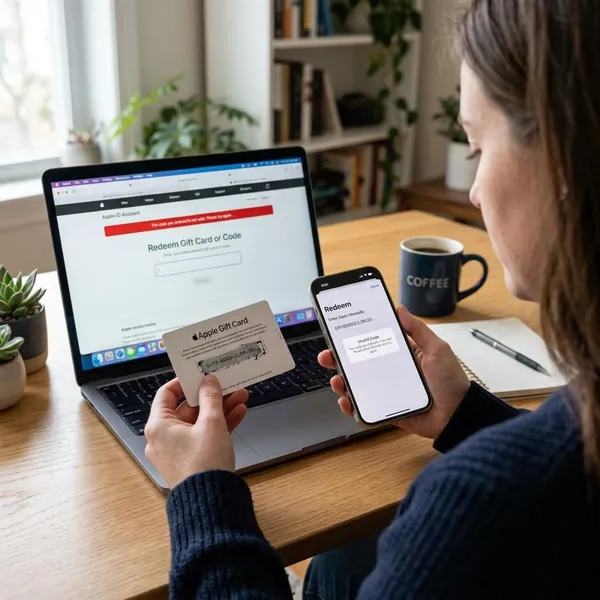
Invalid code
An invalid code message usually means Apple cannot match what you entered to a redeemable code. First, confirm you are not typing the serial number or barcode.
- Compare O and 0.
- Compare B and 8.
- Compare S and 5.
- Try manual entry if camera scanning keeps failing.
If the card looks older or has wording that does not mention Apple Account balance, check Apple’s current guidance for that card type before assuming the code is defective.
Already redeemed code
If Apple says the code was already redeemed, check your Apple Account balance and recent purchase history first. A subscription renewal or app purchase may have used part of the balance after redemption.
In a shared-device scenario, ask whether someone else redeemed it while signed in. If nobody used it and the balance never appeared, gather the card, receipt, and purchase details before contacting Apple Support.
Card not activated
A "not activated" message usually points back to the retailer. Physical cards normally need to be activated at checkout, and a failed activation can leave the card unusable even if it looks new.
Take the receipt back to the store where it was purchased. If the card was a gift, ask the buyer for a receipt photo that shows the purchase date, amount, and any activation line.
Wrong country or region
Apple Gift Cards are generally tied to the country or region where they were bought. A card purchased for one storefront usually cannot be redeemed in an Apple Account set to another country or region.
This matters when sending gifts internationally. If your friend lives in another country, buy a card that matches their Apple Account region rather than your own location.
Scratched or unreadable code
If part of the code is missing, do not keep trying random combinations. Take clear photos of the front and back of the card, keep the receipt, and note which characters are unreadable.
Apple Support may be able to review the card if you can prove the purchase, but help is much harder when the card, receipt, or serial number is missing.
How to keep your Apple Gift Card code safe
Treat the redemption code like cash. Anyone who can see the full code may be able to redeem it, and once the value is used, recovery is not guaranteed.
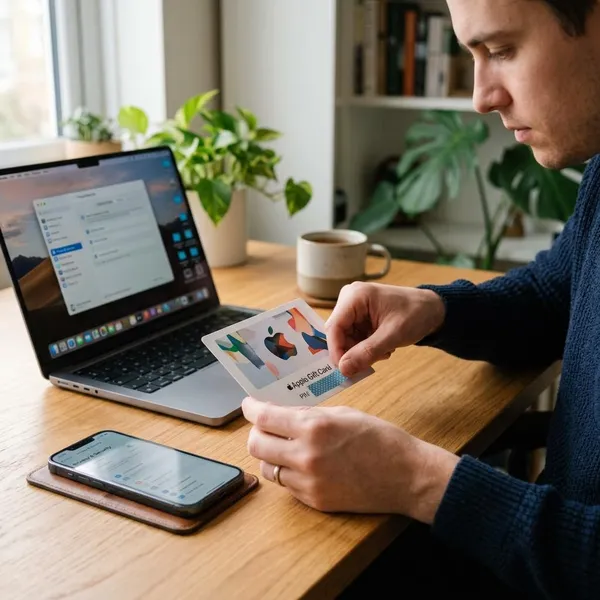
Buy from trusted sellers
Buy from Apple, major retailers, or stores you trust. You are not only buying the card value; you are also buying a clear support path if activation fails.
Be careful with discounted codes from resale groups, marketplaces, or unknown sellers. A cheap code can already be redeemed, region-locked, stolen, or never activated.
Keep the code private
Do not send photos of the back of the card unless you are intentionally giving the card to someone you trust. A clear photo can be enough for another person to redeem it.
For a casual birthday gift, leaving the covered area intact is best. For a digital gift, double-check the recipient’s email address before sending.
Avoid gift card payment requests
Any request to pay a bill, fine, delivery issue, prize fee, tech support charge, or emergency with an Apple Gift Card code should be treated as a scam warning.
- Pressure: they say you must act immediately.
- Secrecy: they tell you not to ask anyone else.
- Code request: they ask you to read, text, or photograph the code.
- Refund promise: they claim the card is only for verification.
If you already shared a code, contact Apple Support quickly and keep screenshots, phone numbers, emails, and receipts. Fast action helps, but it does not guarantee recovery.
Save the receipt
Keep the receipt until the balance appears correctly in the right Apple Account. For store receipts, take a photo before the paper fades; for online purchases, save the order confirmation and delivery email.
This is especially useful during holidays, when gift cards may sit unopened for weeks before anyone notices an activation or region problem.
Contact Apple Support if needed
Contact Apple Support when the code is unreadable, the card looks valid but will not redeem, or the balance does not appear after redemption. Have the card, serial number, receipt, and purchase details ready.
Support may be limited if the card came from an unauthorized seller or if there is no proof of purchase, which is why the buying and receipt steps matter before anything goes wrong.
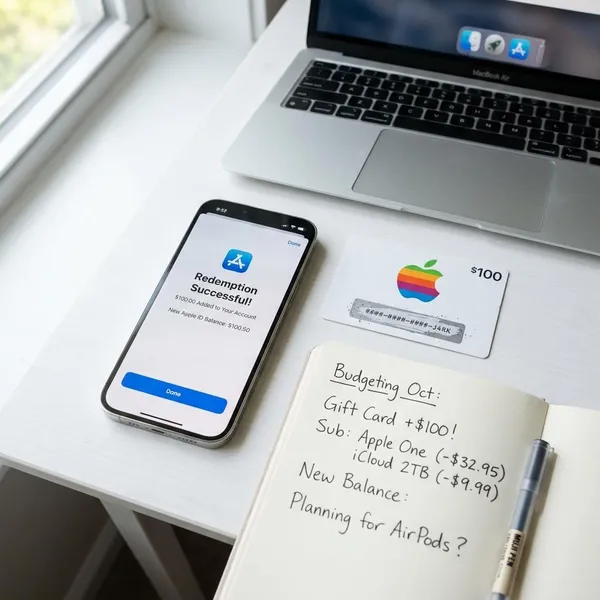
Conclusion
The easiest way to avoid trouble is to find the actual redemption code first, redeem it only while signed in to the right Apple Account, and keep the receipt until the balance appears. If something fails, do not keep guessing: check the error message, confirm the country or region, and use the card and receipt to get the right help.